Quick Start Guide to ePayTrak - Part Two
This is Part Two of Two of the Quick Start Guide. If you have not completed Part One, go back before continuing.
Part Two covers the Catalog system. This is the area where you will create categories and products/classes. It is not practical to cover every feature available in this Quick Start guide, but all items are covered in detail in other sections of these help topics. The catalog is comprised of two basic units, a category and a product. It is similar to the hierarchy structure on a computer. A category is equivalent to a folder and a product is equivalent to a file. You can have subcategories as you can with sub-folders on a computer.
New features will be added in our next release that will customize and improve product creation with a new Wizard.
Catalog Menu
Login to the Merchant Administration and from the Dashboard you will see the top-bar menu items. Hold your mouse over the Catalog menu item to view the submenu items available.
|

|
CATALOG MENU ITEMS
Browse: View and edit your catalog items by navigating the category structure.
Browse Archived: View your Archived products.
Search: Find and edit your catalog items with the search form.
Find Kits: Search and display links to your Kit products.
Product Templates: Create a template that can be used to collect data from a customer.
Product Reviews - A seldom used featured where customers can review the products if enabled.
Digital Goods: Submenu items include Manage Digital Goods, Search, Readme's and License Agreements.
Orphaned Items: Will display products that are no longer assigned to categories.
Pricing Groups: Create multi-discounts for complex and irregular pricing structures.
Venues: If your school has more than one theatre or venue, it can be entered here. (Normally done by ePayTrak personnel.)
|
Catalog > Browse
To view your Catalog system, you can mouse-over the Catalog menu item and then select Browse.
Click on it and you will see a page similar to the image below. The following screen capture shows an ePayTrak demo site.

At the top level of your Catalog, you can only create new Categories. This is because each catalog item must be part of a category in order to provide a navigation system for your customers. Looking from left to right, the Catalog page has the following sections:
-
Select Category: This is a tree style navigation system so you can navigate your category structure.
-
Contents of Catalog: This is where you can view and edit the items in a particular category. Here you will see Subcategories, Products/Classes and Links. Features such as sorting, editing, copying, view state, move and delete are available here.
-
New Category: You can use this section to quickly create a new category.
-
Add Item: You can click on one of the objects available in this section to create a category, product, webpage, or link.
-
Search This Category: A quick search form for your catalog. This is similar to the page Catalog > Search.
Before moving ahead to new product creation, let's go ahead and create a new category here.
To Create a new Category:
-
In the upper-right corner of the Browse Catalog page, you will see the New Category section.

-
Enter a name for your category into the field provided. Here we used School Fees.
-
Click the ADD button.
-
Your new category will be displayed in the middle section, Contents of Catalog.
To Edit a Category:
-
Locate the Category in the middle section, Contents of Catalog. Below is a section of the 'Contents of Catalog'.

-
Above, you can see 5 icons to the right of the Catalog name. The 'magnifying glass' is for Preview. The View State (the globe) is the next one. Edit is the third button which looks like a blue note pad. The green icon is for moving the Category as you can not click and drag the item. The Red X deletes the entire Catalog and all of its contents. At the left, the green arrows allow you to move your categories up or down as you wish them to be displayed on your ePayTrak site.
-
Click the blue edit button to edit the Category. This will bring up the Edit page for the category as shown below. You can change the Name of your Category in the Name box. You can add a thumbnail image for your category on this page. This is explained more in the Manage > Images and Assets section. You can add a Summary or a Description as shown below. The Summary page is displayed on the public side of ePayTrak.

-
Click the FINISH button on the bottom when you are done. (not shown)
To Change the View State of a Catalog Item:
When creating new Catalog items, they will be immediately viewable in your store. If you want to change the View State for an item, click on the  icon in the Contents of Catalog as shown below.
You will then see the screen below.

-
Current Setting: This shows you the current view state for the catalog item.
-
New Setting: Choose the new view state. Public (shown to all users in store), Hidden (available through direct link only), Private (not shown in store). Choosing Private will make that product unavailable for purchase. It will also remove any items any of your customers might have stored in their shopping cart.
-
Include Contents : For categories, you can change the view state for all the catalog items within the selected category.
TIP: While in the process of creating your school store, you can enable the Catalog Mode feature under Configure > Store. This will hide the 'add to cart' button for all products, so customers can browse your catalog but are unable to purchase directly online.
Product Management
One of the most important parts of a shopping cart system are your Products whether they are for the School Store, Tickets, Classes or other.
It is easy to view the product features by going to the retail side of your store. You can do this by clicking the STORE icon in the upper-right corner. (You can also click the Preview icon (magnifying glass) to view that product from the admin side) When you are familiar with some of the product capabilities, let's continue by adding a new product of your own.
To Add a new Product:
-
From the Browse Catalog page, click the existing category where you want your product to appear.
-
On the right side of the page, look in the Add Items section.

-
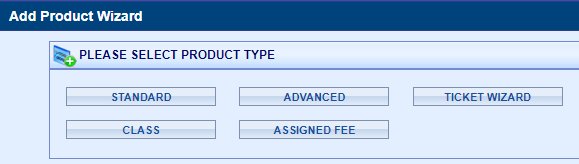
Click on the PRODUCT link/icon to view the Add Product page.
That opens the new Product Wizard.
-
For now, just enter a product name.
-
Scroll to the bottom of the page and click on the SAVE button.
-
This will take you to the Product Details page where you will see a variety of options in the left side menu.
PRODUCT MENU ITEMS

|
Product Details: The summary page for your product. This is where you would enter basic data, tax, shipping, and descriptions.
Images and Assets: You can upload a new image or attach additional images to a product.
Options and Variants: A product variant is a unique combination of options. Variants can be used to control inventory. Options can be used to display image swatches and for a ticket template.
Digital Goods: Attach an existing digital file to a product or it's variants.
Kits/Bundles: A method of including several products into one product. Note: Variants can not be used in the kits/bundles arrangement.
Volume Discounts: Attach an existing discount method to a product.
Pricing Rules: You can set multiple price points for a product based on date or member group.
Similar Products: These are the products that are related, that should be highlighted in cross-selling scenarios.
Product Accessories: Select the products that are used in up-selling scenarios during checkout.
Categories: Select additional categories that should display this product.
Product Template: Attach an existing product template. A product template can be used to gather information from the merchant and/or the customer.
Preview: Opens a new browser window so you can view your product as a customer would see it.
|
TIP: It is recommended that you create your Accounting and Department Codes before entering new products. This will save time in the building of your ePayTrak catalog.
To Add Basic Product information:
-
From the Edit Product page, click on the Product Details menu item.
-
In the BASIC INFO section, add the product price. This is what you wish to display to your customers before any discounts or coupons.
-
Additional fields for SKU, and Location are provided. You now must assign a sku, they are very helpful in reporting. Location is optional and provides your customer with extra search capabilities.
-
If the product is a Gift Certificate, check the box so the system will automatically generate gift certificate serial numbers as part of the fulfillment process. (rarely used)
-
If the Variable Price box is checked, the customer can enter their own price. This can be helpful for a customer making payments to a Food Service account that might vary due to the number of meals per month.
-
You can use Hide Price for certain items, a ticket event perhaps that has different pricing.
-
If you want to have a valid participant ID for the purchase, check the Require Valid Participant for Checkout box. This feature requires you to import student or participant ID's prior to the product creation.
-
Next is the Combine Like Items Cart setting. This setting governs how items can be combined in a cart. A customer can add multiple Classes/Products for just one student/participant if this setting is checked. If you want a customer to purchase the same class for two separate students, then this setting should be unchecked.
-
Allow Guest Checkout enables a customer to purchase a product without creating a user account. Normally this is used for ticketing functionality.
-
Show in mPOS is primarily for ticketing products or any other item you wish to see utilizing the mPOS functionality. (This feature only works if your
CONGRATULATIONS! You have completed the Quick Start Guide.
NEXT - Review the Order Manager documentation.
related topics
|
2022 © Edutrak Software, LLC
|