Manage > eMail Queues > Managing eMail Invoices
Managing eMail Invoices
Our latest feature will help improve sending Student Fee Invoices to the parents.
After creating or importing the student accounts and generating the Student Fees, the next step is to apply payments to those fees. (The public might need to be notified when the fees are in ePayTrak before they can pay them online! ePayTrak can send an e-mail that a student fee was created.)
-
You will need to filter the students who are to receive an invoice in the Manage>Students section. In the example below, I entered 6 for the Grade and I checked Open Payments Only.

-
Then Click on Queue Emails to send them to the Email Queue waiting for further attention.
-
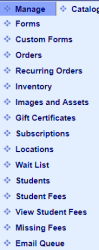
Go to Manage > Email Queue.
There are complete instructions on the eMailing Student Fees Invoices here.
Note: The student must have an e-mail address attached to the student to receive an e-mail.
Below is our queued e-mail list. Click the Action Drop-down to choose: Send selected, Send all, Delete all or Delete selected. You can send them all, or you can click in the Checkbox to send only selected invoices.

-
Click Send all or Send selected from the Action Drop-down and Click Go and all your e-mails will be sent to the group in your queue. Pretty simple and a huge improvement.
Before you attempt to utilize this functionality, you must have the e-Mail template activated under Configure > eMail > Templates. Contact Tech Support if you need to change or add triggers for those e-mails templates or want to utilize this new feature. New sites will be configured before they go live.
Related Topics:
-
eMail invoice filters -A guide to finding the correct filter set.
2022 © Edutrak Software, LLC