People > User Groups
User Groups
There are many default User Groups available in ePayTrak. These User Groups will make it easier for the System Administrator to assign the correct User Group to the individual needs of your staff members.
A screen shot below shows the User Groups that are available.
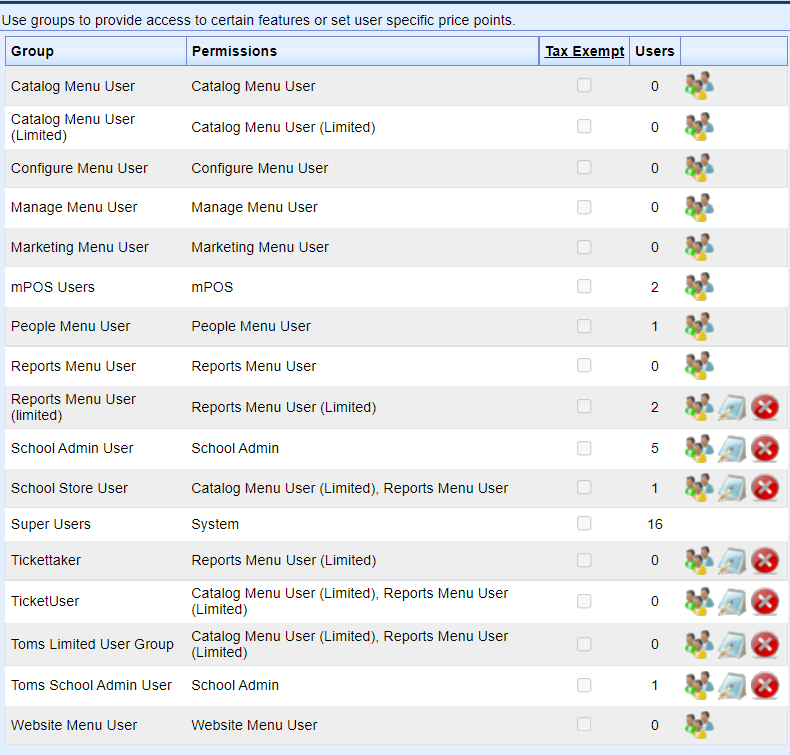
The descriptions of those groups are:
-
Catalog Menu User - Only the Catalog Menu is accessible.
-
Catalog Menu User (Limited) - This group allows you to give full admin user rights to users, but with limited catalog availability.
-
Configure Menu User - Only the Configure Store Menu is accessible.
-
Manage Menu User - Only the Manage Menu is available. This will permit access to the Order Manager.
-
Marketing Menu User - Only the Marketing Menu is available.
-
mPOS User - A new user group designed for easy Ticketing or School Store access.
-
People Menu User - Only the People Menu is available.
-
Reports Menu User - Only the Reports Menu is available.
-
Reports Menu User (limited) - Reports can now be limited as well.
-
School Admin User - Has access to almost all menus. Can change most user profiles.
-
Super Users - Has access to all information. Can change all users. For ePayTrak personnel only.
-
Website Menu User - Has access to only the Website Menu.
The other groups you see in the screen shot are customized User Groups. School Admins now have rights to create and edit those customized User Groups.
You can also combine several user types for a single ePayTrak user. Hold the Control Key and click on another group to add another user group to a user.
-
You can also add a User Group that will be used for Group Membership discounts. This is outlined in the Group Membership section.
Below, I'm creating a TicketUser User Group.
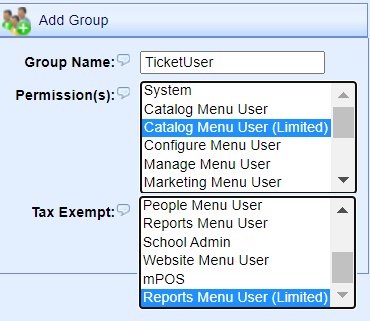
You can create a User group to limit admin access to portions of the catalog and reports both if you choose the Limited options. For example, in a large school district you might not want your Middle School admin people to have access to the High School catalog but you want them to have full rights.
-
Enter a Group Name. In this example, I'm using Ticket User.
-
I've selected Catalog Menu User (Limited) and Reports Menu User (Limited) permissions for that Group. Save the new User Group.
Once you have saved your group, you can edit the Limited items by attaching products and users.

-
Click the People icon to make those edits.
You will first see the Users in the Group. You can add them in any order, but I will add those last.
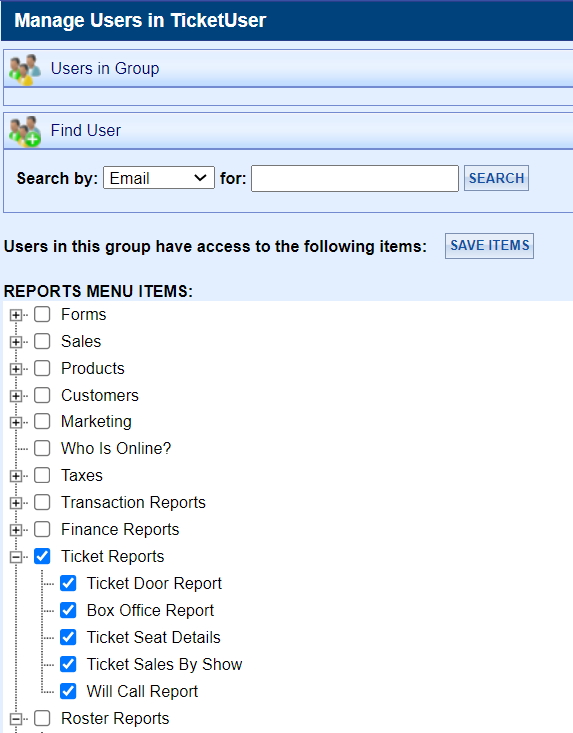
The Reports Menu is the next section you see as shown above.
-
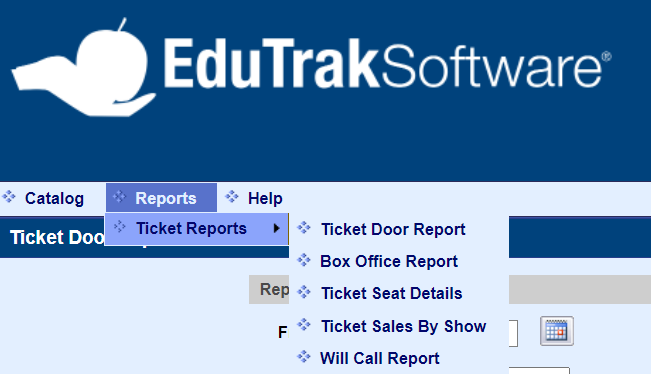
Select the Reports that you want the TicketUser group to view. In the sample above, I only added Ticket Reports because those are the only reports that the group needs. Click the Save Items button.
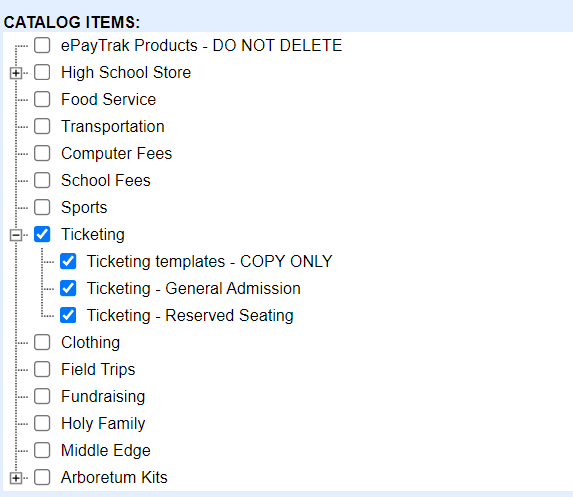
The Catalog Items is the next section.
-
Select the Categories the User Group will have access.
I selected only the Ticketing Category and it's sub-categories. For best results, check all the categories and sub-categories. Click the Save Items button to ensure all your changes are saved.
Now we can add user accounts to the TicketUser group.
-
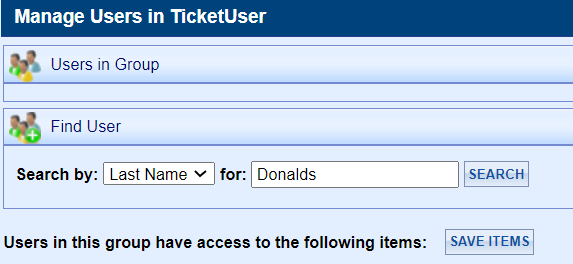
Enter a name or e-mail to find a user account and click the Search button.
-
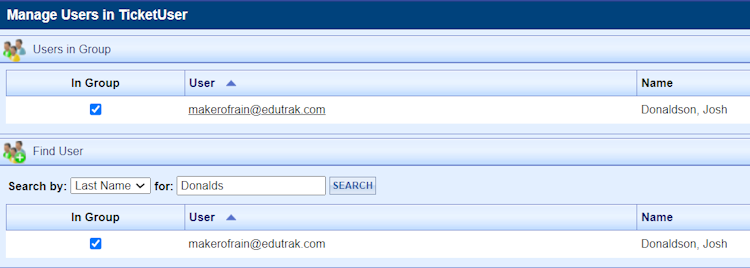
Next, Click the In Group checkbox to assign this user to the group. Once you click that box, you will see all users in that group. In this case, this is the only user.
-
Click the Save Items button.
Let's check the results by logging in as a TicketUser.
When that user clicks Catalog > Browse only the Ticketing Category is available.
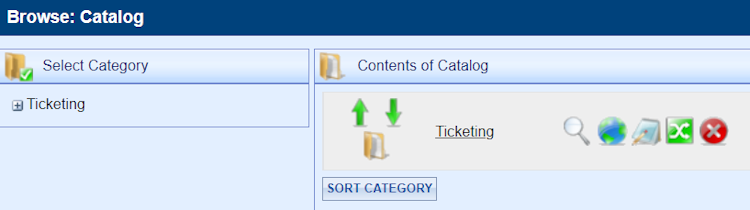
We see similar results when we click on the Reports Menu. Only the Ticket Reports are available to that user.
You can also add a User Group to any user by finding the account under People > Users and then selecting that group. You can de-select a group by holding the Control Key and clicking the group.
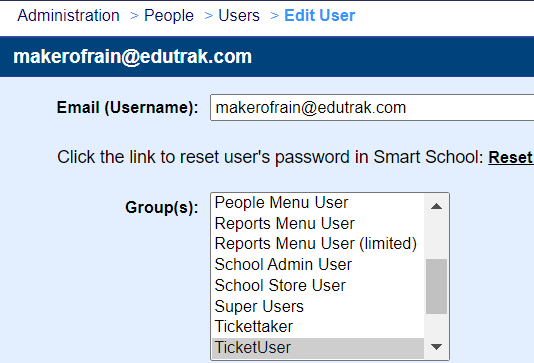
This might be especially useful for schools with ticket event functionality.
Related Topics
-
Users - How to create and edit a User profile in ePayTrak.
2022 © Edutrak Software, LLC