Student > Student Accounts
Creating Student Accounts via Import
There are several ways to introduce Student Accounts into your ePayTrak store. One way is to import your students using the import function. You can import all your students at once using this feature. Navigate to Configure > Imports/Exports > Import Students. The page will look like the one below. Navigate to the .csv file on your computer by clicking Browse. Then click Import when you have located that file. A Databridge could be created if circumstances permit. We integrate with many Student Information Systems now. Tech Support can help with that on an individual school basis. That would eliminate the need for imports!

There is a template available from ePayTrak Tech Support for this import. The file looks similar to the image below, a .csv format file that you can open in Excel.

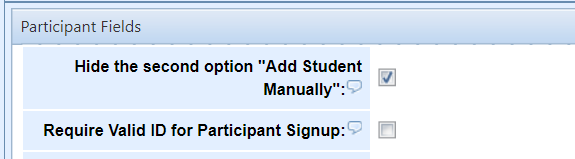
For Schools with Databridge, you will not import students or add students manually. But you need to check 'Hide the second option "Add Student Manually" checkbox and save your changes. That will prevent parents from creating duplicate student accounts.
You can also create students manually in ePayTrak but it should not be done if using a Databridge, it will only create havoc. The steps below are for reference and for schools who still import their students. Go to Manage > Students. You will see the following screen, which displays the students already in your system. Click on the 'Add Student' button. You will not want to add new students if you are using a Databridge sync with SmartSchool.

You then see the window below where you can enter all the information for the student, including the Student ID field. Click the 'Add Student' button to complete the entering process from this screen/window.

If you must add students, then the Student import is the best option.
related topics:
-
Generating Student Fees - Explains ways to create student fees in ePayTrak.
2022 © Edutrak Software, LLC