Student Fees > Missing Student Fees
Missing Student Fees
Throughout the school year, new students will be added to school rosters. Those students will need to pay the same Student Fees as their classmates either prorated or not. When new students are added either through an import or if they are added via a Databridge, the Student Fees need to be created. If your students are brought over in a sync process, many of the following steps still apply.
You will not need to create a student if synced with a student information system. But the Missing Student Fees capability is still quite helpful.
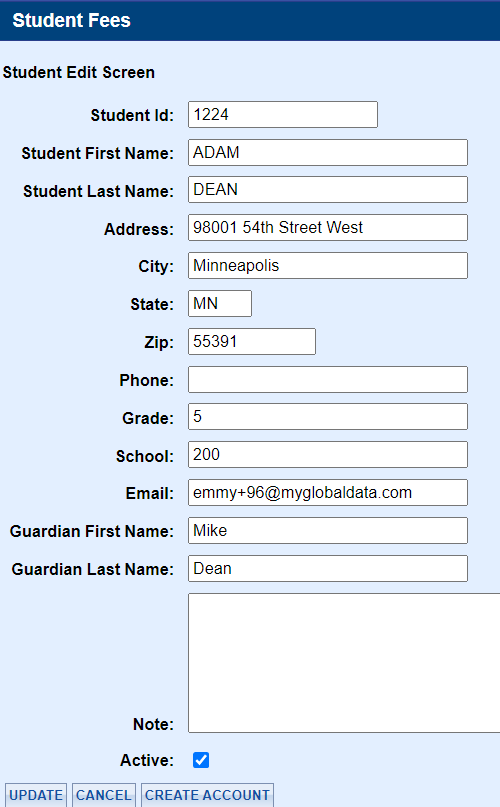
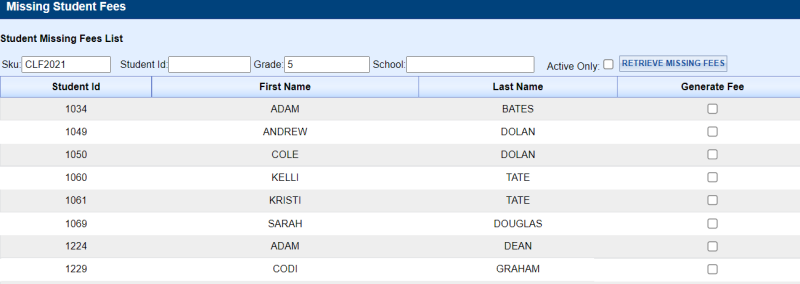
Above is an example of a Student Account, Adam Dean. The information might vary depending on what information was imported or via a Databridge sync. All 5th Grade students get charged for Ceramic Lab Fees, but the new students haven't been billed for the fee yet. Go to Manage > Missing Fees. Enter the Sku number and the Student Grade to begin the Fee Generating process. You can create a fee for one student very easily in this manner also. If there is no fee yet created for a student, it will be listed as a missing that is shown below.
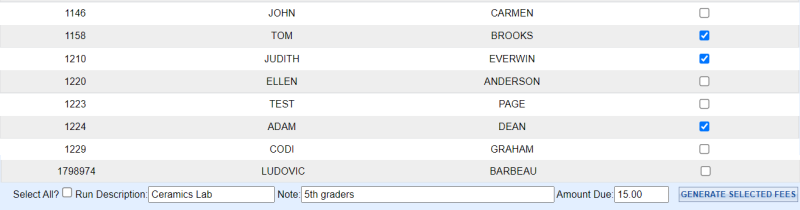
To generate the fee, Enter the Amount Due first, click in the Generate Fee box and click the 'Generate Selected Fees' button for any or all of the students you select. Adding a unique Run Description might be helpful for managing your students fees, in this case it might be helpful to add a Run Description of Ceramics Lab Fees.
After generating the fees for all the students, you will see this screen again but without the students who had fees created. The fee was generated for the selected students only.
After creating the Student Fee go back to Manage > View Student Fees and enter the Last Name or Student ID. I entered 1224 and clicked Filter and the Ceramic Lab Fee is now available for payment. The Run Description field will appear in the Fee Run section. You might find a description more useful than a date and time, but it is optional.
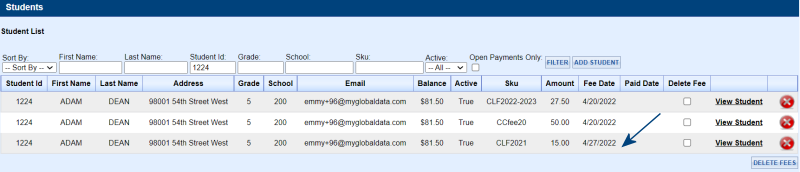
Payment can now be made by the school admin or the parent/guardian. What will the parent see? Upon login, a parent sees a section for Unpaid Fees. Click the Click Here link.
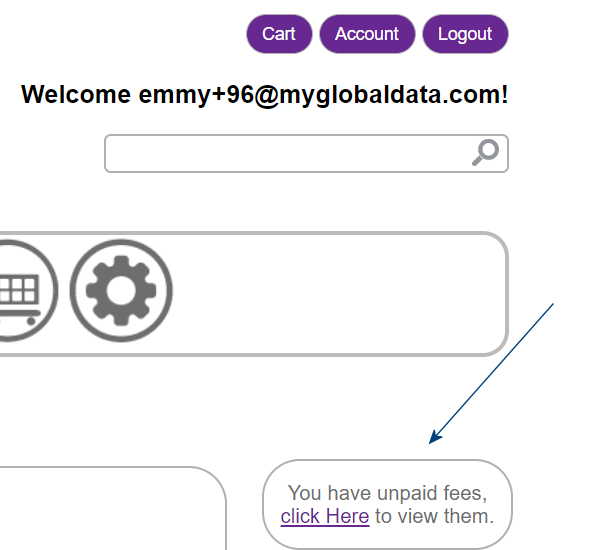
That link brings you to the Account > My Fees page. That user account has three Student accounts, one for each student.
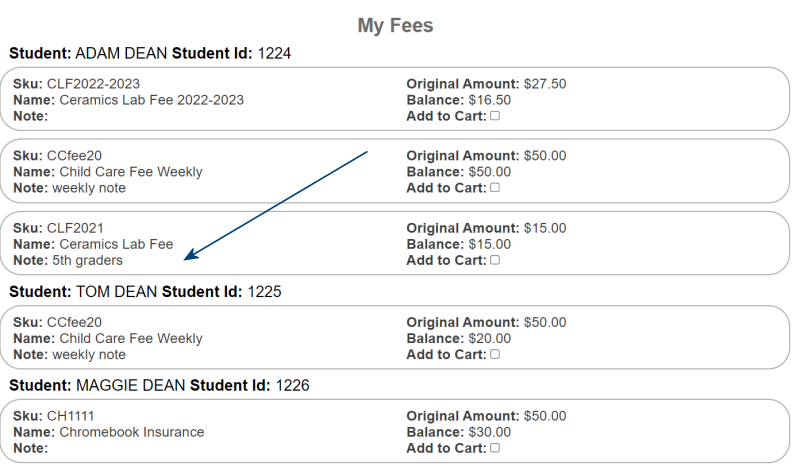
Note the newly created fee for Adam Dean. Note the 5th graders text that I added when I created the fee.
related topics:
-
Generating Student Fees - Steps on how to generate student fees in ePayTrak.
-
ePOS Student Fees Payments - Detailed steps on paying Student Fees from the admin side utilizing one of our newer features.
-
2022 © Edutrak Software, LLC