Catalog > Browse > Categories > Creating and Editing Categories
Creating and Editing Categories

At the top level of your Catalog, you can only create new Categories. This is because each catalog item such as a product, must be part of a category in order to provide a navigation system for your customers. Looking from left to right, the Catalog page has the following sections:
-
Select Category: This is a tree style navigation system so you can navigate your category structure.
-
Contents of Catalog: This is where you can view and edit the items in a particular category. Features such as sorting, editing, view state, move and delete are available here.
-
New Category: You can use this section to quickly create a new category.
-
Add Item: You can click on one of the objects available in this section to create a category, product, webpage, or link.
-
Search This Category: A quick search form for your catalog.
Before moving ahead to the product editing, let's go ahead and create a new category here.
To Create a new Category:
-
In the upper-right corner of the Browse > Catalog page, you will see the New Category section.

-
Enter a name for your category into the field provided.
-
Click the ADD button.
-
Your new category will be displayed in the middle section, Contents of Catalog.
To Edit a new Category:
-
If you want to create and edit a new category, then click on the Category icon in the Add Item section.

-
This will bring up the Edit page for the category.
-
At a minimum, you will need to enter a name for the category.
-
There are additional fields and settings available. Mouse-over the tool tip text for a brief description of each.
-
Click the FINISH button when you are done. Your new category will be displayed in the middle section, Contents of Catalog.
To Change the View State of a Catalog Item:
When creating new Catalog items, they will be immediately viewable in your store. If you want to change the View State for an item, click on the  icon to view a page similar to the one shown below:

-
Current Setting: This shows you the current view state for the catalog item.
-
New Setting: Choose the new view state. Public (shown to all users in store), Hidden (available through direct link only), Private (not shown in store)
-
Include Contents : For categories, you can change the view state for all the catalog items within the selected category.
Filters for Categories
We have recently added the ability to create a filter for your categories.
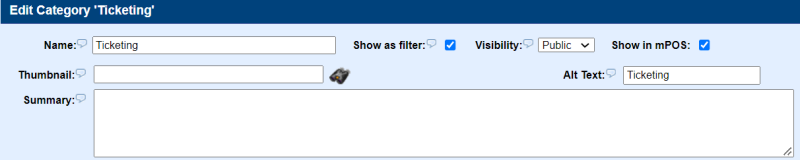
If you check the Show as Filter box, the category will appear as a button at the top of the page to the public. Yet another way to display your categories.

TIP: While in the process of creating a new store, you can Enable Catalog Mode feature under Configure > Store by clicking the box to add a Check. This will hide the 'Add to Basket' button for all products, so customers can browse your catalog but are unable to purchase directly online. If your site is already 'live' you will want to 'hide' the product by choosing Hidden or Private until the product build is complete.
If you need assistance in creating your catalog, ePayTrak personnel are available to help you.
You can always move a product or category by clicking the green Move button. (You aren't able to click and drag a product or category to another location in your Catalog.)
Related Topics:
-
Products - How to add Products to your completed Categories.
-
Supplemental Table of Contents - Hyperlinks to navigate these help files.
2022 © Edutrak Software, LLC