Ticket Events > mPOS Ticket Sales
Web mPOS Ticket Sales
We have created an all new Web-based mPOS. You might want a cash drawer and a printer that integrates with the system. Consult with EduTrak personnel for the latest specifications and newest improvements.
Currently, we are using a Star Micronics Thermal printer to integrate with the Cash drawer, but with the new Web mPOS other options will become available.
Placing an Order for a Customer on Web mPOS
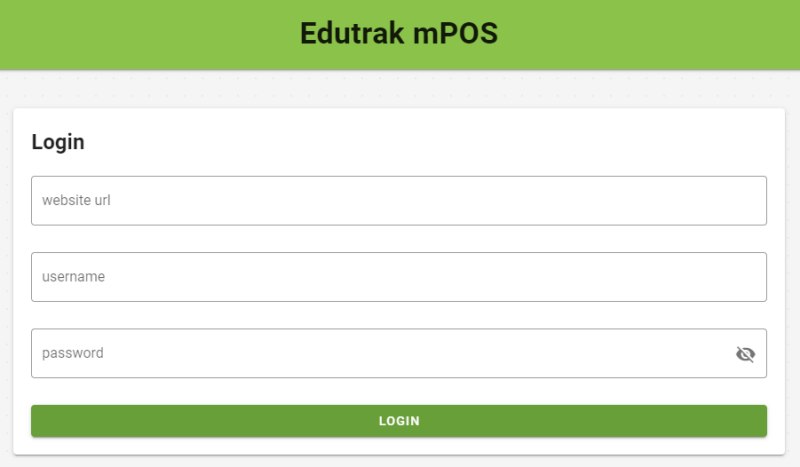
Above is a view of the login page.
-
Enter the URL and your login information and click Login to gain access to the Web mPOS application. Your first login will save the Website URL so you don't need to re-enter the URL.
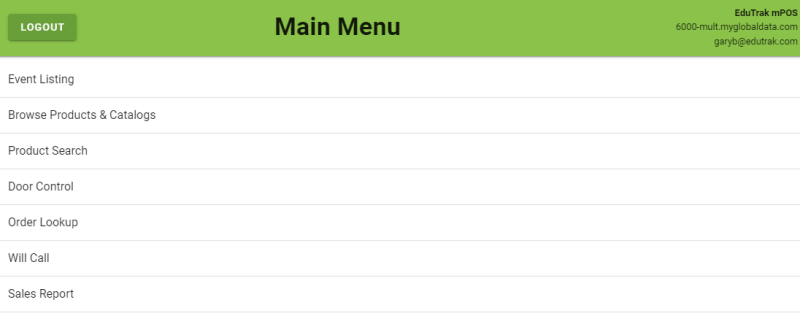
That will bring you to the Main Menu Page.
-
Click Event Listing at the top of the page.
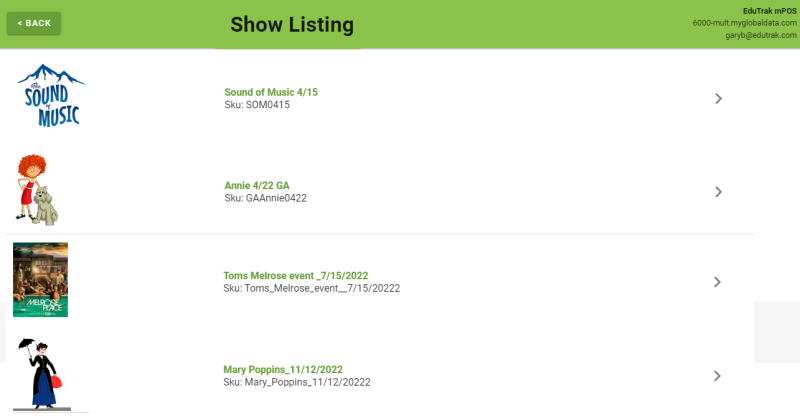
You see available Events as seen below.
-
Click Mary Poppins to purchase a show.
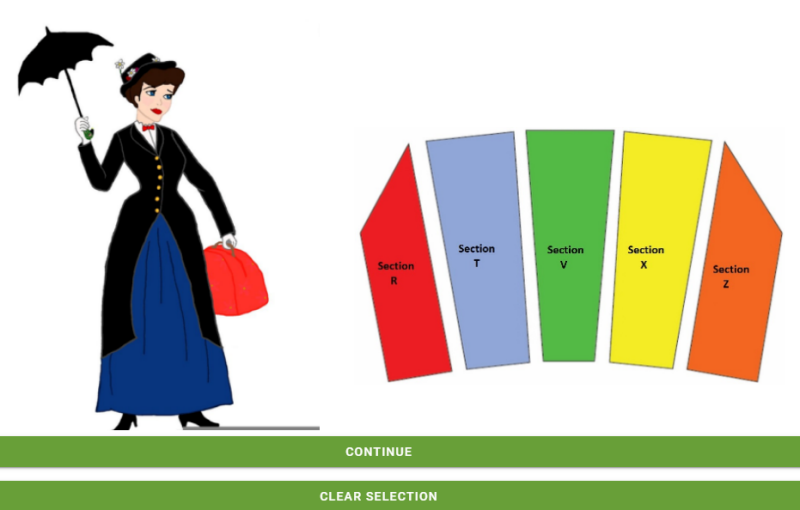
That shows the Sections of the seat map.
-
Click on a Section to select seats. (I selected Section Z)
-
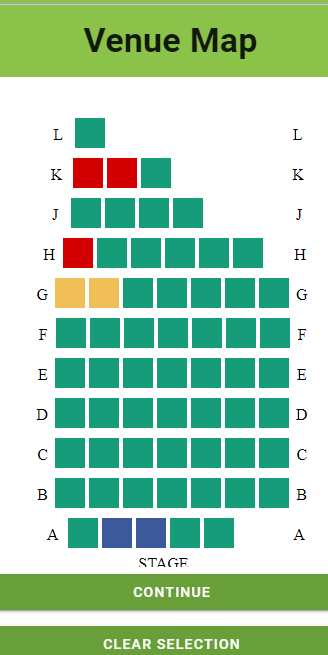
Select your Seats. I selected two seats in Row G. (ZG 6, ZG 7)
Note: Sold seats are in Red, when you click on seats they turn yellow as shown below. Then nobody else could select those seats simultaneously.
-
Click Continue if you are happy with your selection.
-
If you made an error, simply click the Clear Selection button to start over.
-
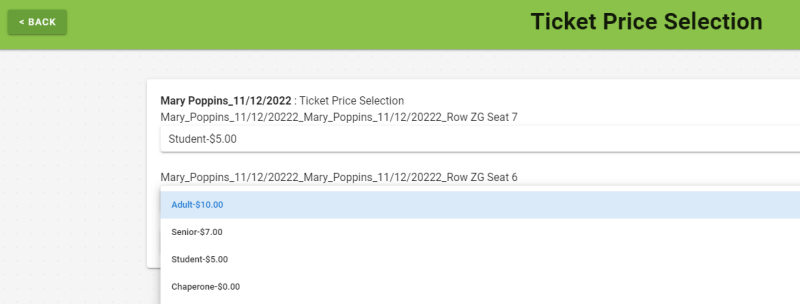
After you click on Continue, you see the following window. Select the applicable pricing from the drop-down.
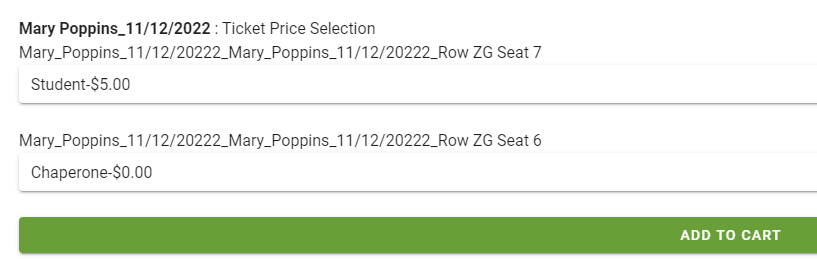
After selecting the appropriate pricing as shown below...
-
Click Add to Cart.
-
You see the payment screen. If the customer wants to receive an e-mail receipt, enter the e-mail address in the box where the arrow is located at the top left.
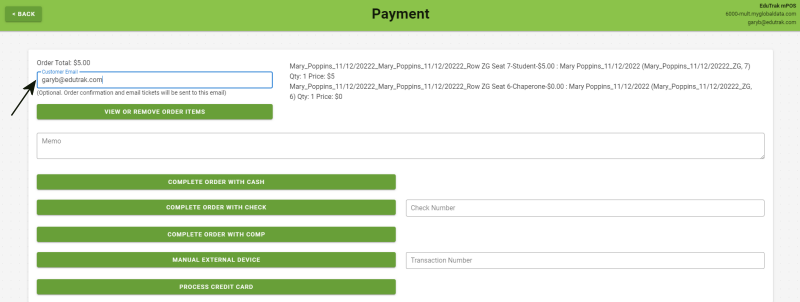
Web-base mPOS has multiple payment options. I clicked Complete Order with Cash for my test order. You have check options, comp options and manual external device or a separate SRED device to scan the credit card.
Web mPOS isn't just for ticketing. You can sell catalog items in your school store for example.
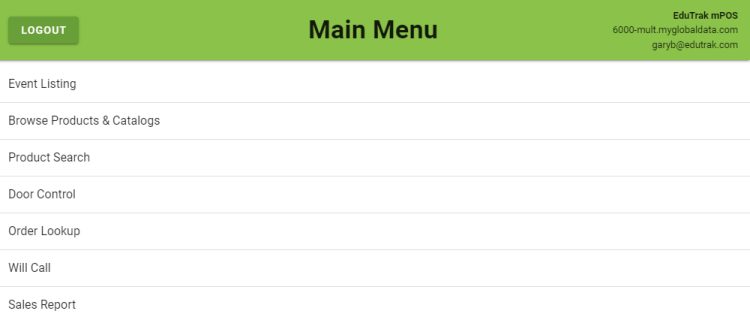
Login to your Web mPOS site and you see the main menu as shown below.
School Store Browse Products and Catalog
You might have other products that you might want to sell from the Web mPOS app, such as a school store.
-
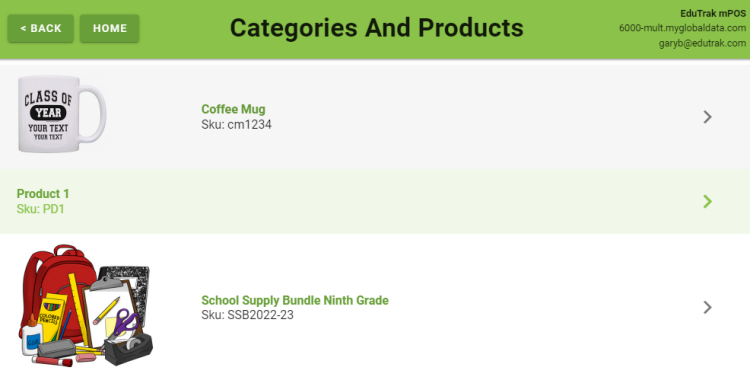
From the Main Menu, select Browse Products & Catalogs.
You will see a screen with the items in your catalog.
-
Click on the product you wish to purchase.
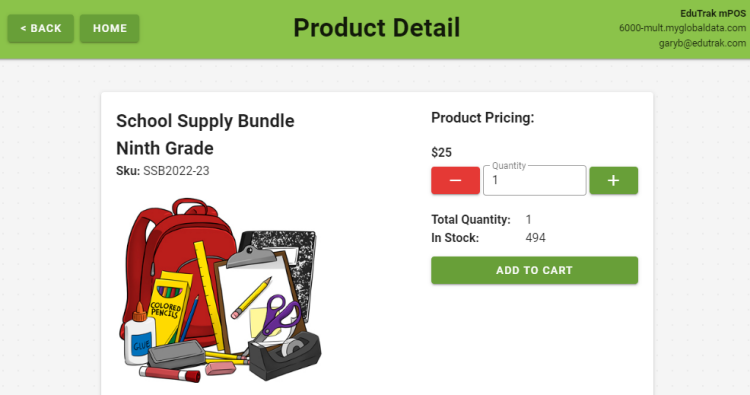
I selected the School Supply Bundle for Ninth Grade product.
-
Select a Quantity by clicking the Green Plus. Normally, the default is set to one.
-
Click Add to Cart.
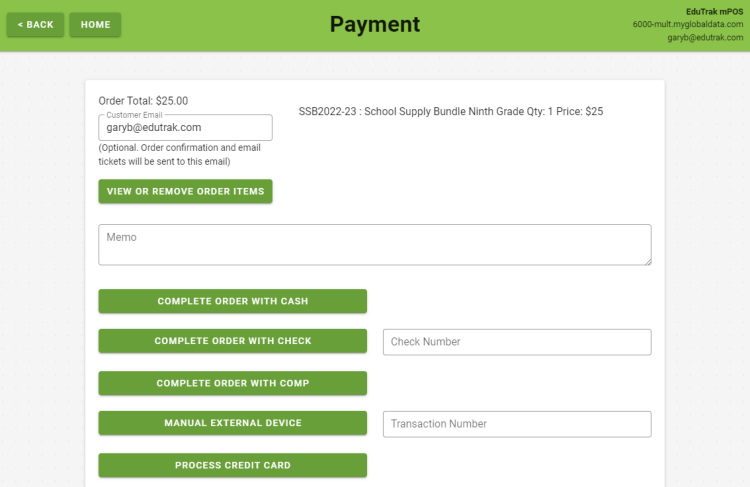
After selecting Add to Cart, you see a Payment window.
-
Add the e-mail address if the customer wants a receipt sent via e-Mail.
-
Select the payment type. I clicked the Complete Order with Cash button.
That opens a separate window for your printer.
-
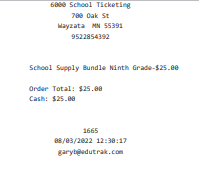
Send the transaction to the printer of your choice to give the customer a receipt if necessary. The customer will get a receipt sent to their phone. The receipts will include bar codes.
You see the message that Order 1665 was created.
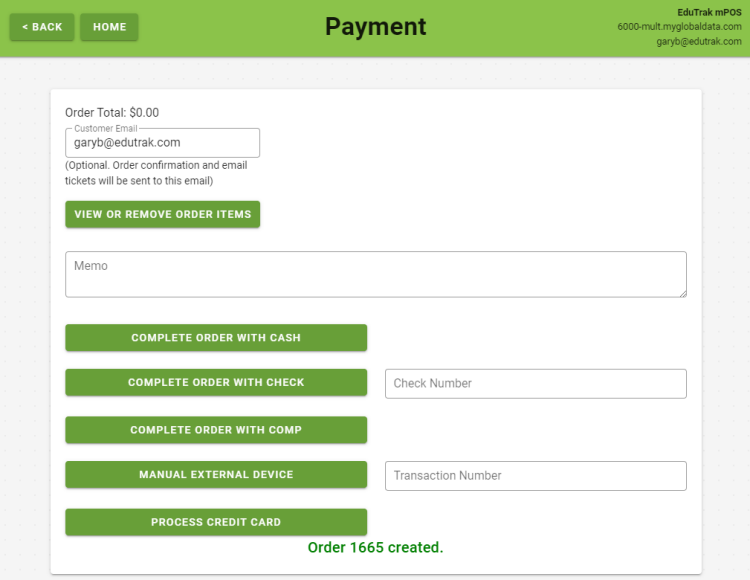
To place another order click the Back button at the top left of the screen as shown above. If you wish to place an order for a different product, click on the Home button.
Order Lookup
Order Lookup is a handy tool, whether your Web mPOS product is for your School Store or a Ticket Event. If your product is a Ticket Event, it is likely that someone will not have a ticket or receipt for door entry. You can access Order Lookup from the Main Menu to search for the transaction.
If you know the Order Number, it's always much easier. Enter the Order Number and click Look up Order.
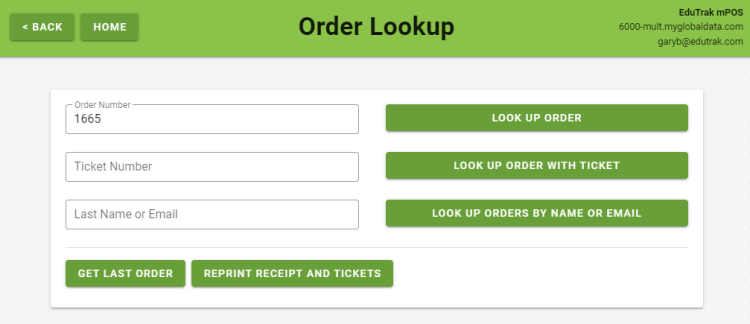
You can search by Order Number, Ticket Number, Last Name or Email. After clicking Look up Order you see the screen below.
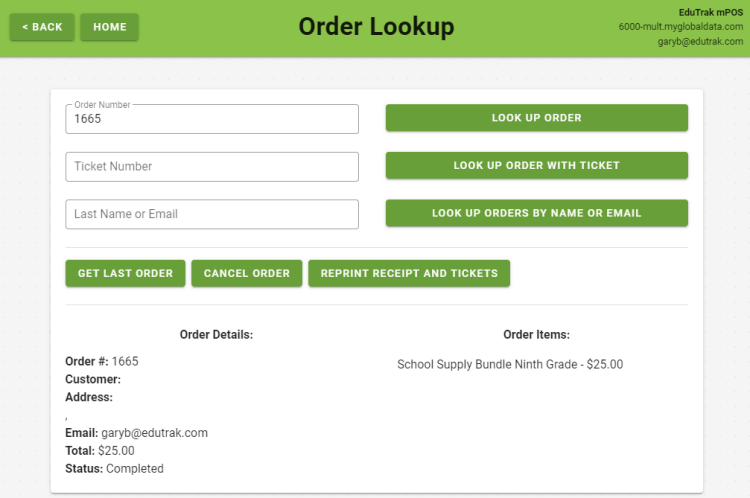
Our first example is by Order Number, although it's not likely your customer will know the order number.
You can select Reprint Receipt And Tickets if you wish to print a hard copy.
You can look up an order by Name. In the example below, I searched by my Last Name. Click the Look Up Orders by Name or Email button to see your results.
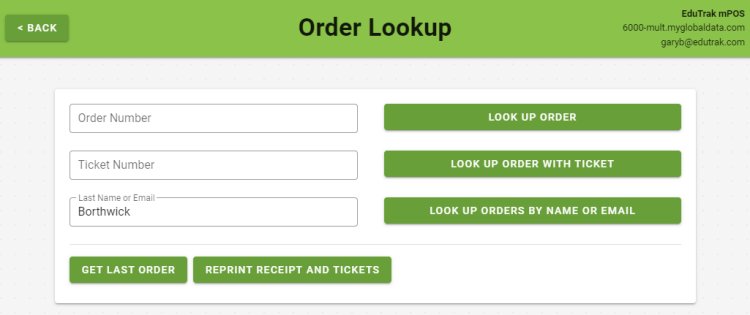
The search was completed. If a customer has placed previous orders,you will see them here.
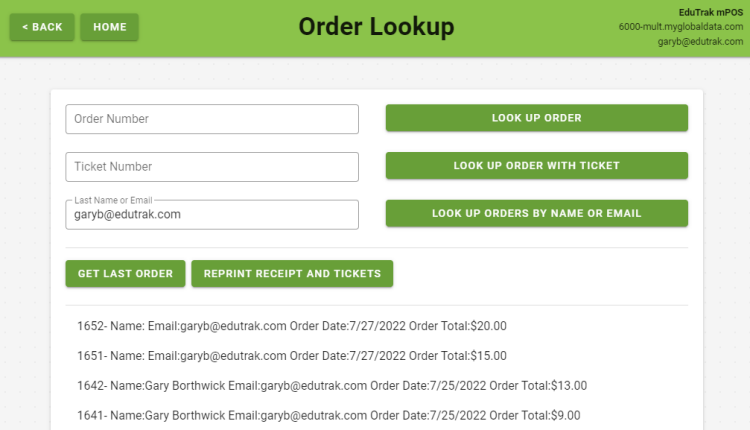
Click the order you want, and the order will open as seen below. I clicked on Order 1642.
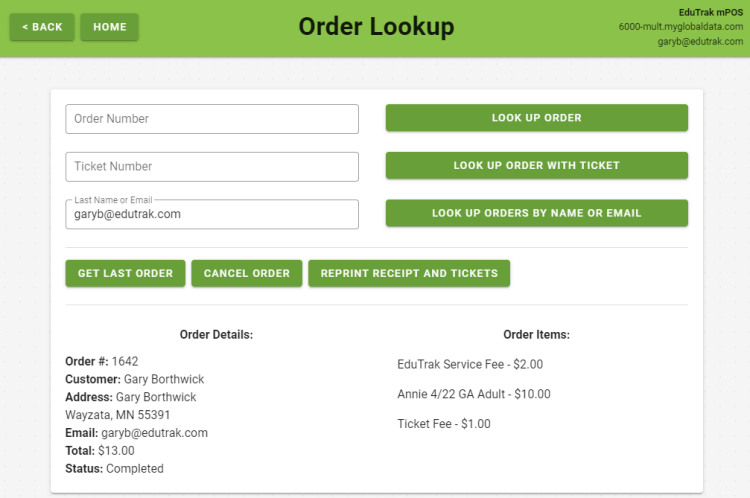
Click Reprint Receipt and Tickets. After they print, you will see Receipt & Tickets Printed.
If you cancel an order in mPOS and there was a credit card payment attached to that order, you must execute a refund in the Web version of ePayTrak to keep your accounting records accurate. If you processed an order or on a stand-alone credit card terminal, you must complete refunds on those devices so your customer will get their money refunded.
Will Call Report
The Will Call Report is available from the Main Menu. (You can turn the Will Call option on or off globally in ePayTrak settings.)
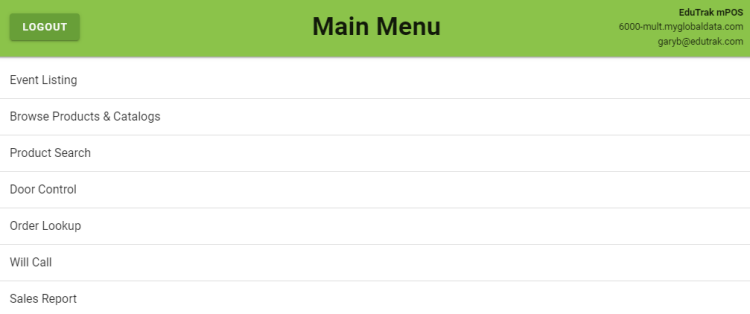
Click Will Call and you will see a list of your ticket events.
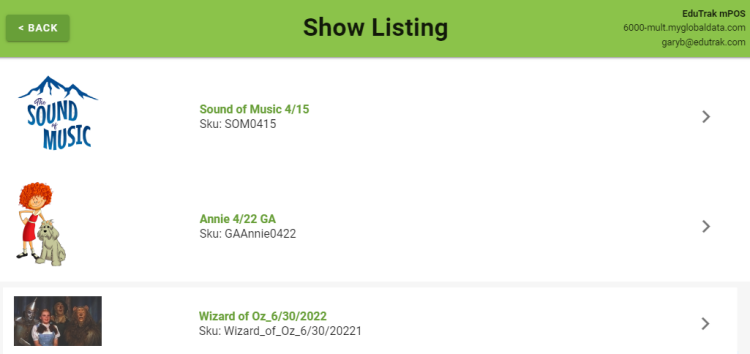
Click on the event you wish to see the list of Will Call ticket purchases. In the example below, I clicked on Annie.
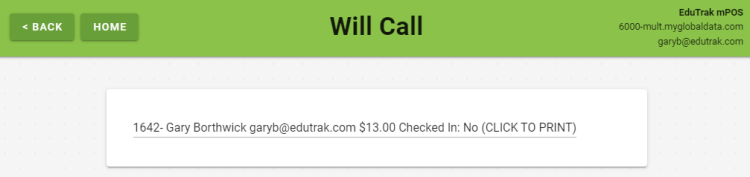
Click to Print to print the tickets for each customer.
Sales Report
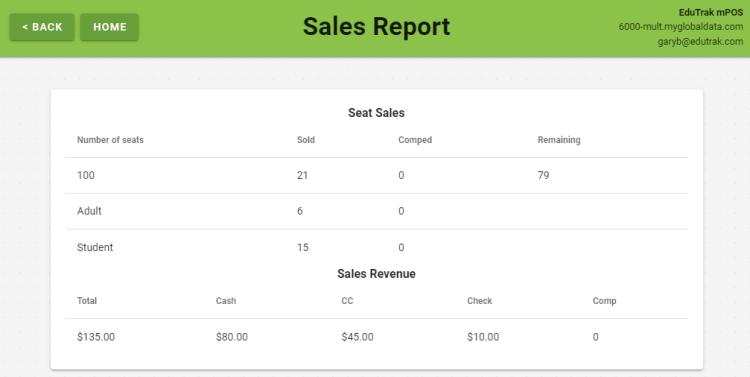
There is a very handy Sales Report for each show that provides details on the ticket purchases. This report is available from the Main Menu.
Click Sales Report.
You will see a screen to select the show. Select the show you wish to view the report. I selected the Annie show.
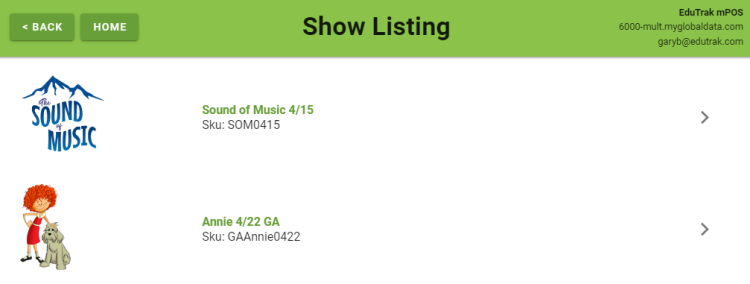
There is no need to search for a Sku for this report which makes viewing this report fast and simple compared to the Web version.
Related Topics:
-
Ticket Hardware - Steps to configure all hardware.
-
Ticket Events Assigned Seating - Steps to create your assigned seating ticket events with the new Ticket Wizard.
-
Ticket Events General Admission - Steps to create your general admission ticket events with the new Ticket Wizard.
2022 © Edutrak Software, LLC