Ticket Events > Ticket Sales Products
Assigned/Reserved Seating with the Ticket Wizard
This section for the new Ticket Wizard is designed to be used as a step-by-step guide for creating your ticket events with assigned or reserved seating. See General Admission Seating if you have a general admission product.
The most basic of the steps for a successful ticket event in ePayTrak is the product creation. You have a choice between general admission or reserved/assigned seats. EduTrak personnel will create the original options and variants ticket template for your venue. We will also create a seat map to be used for ticket sales when we receive a floor plan with all rows and seats from the school/venue.
We will create the Ticket Template for your Reserved or General Admission events. All you need to do is utilize that new Ticket Template.
-
Select the Category for your new event. I used the Ticketing Category on our demo site.
-
Click the Product icon.
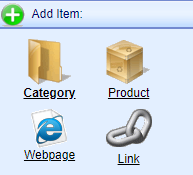
That brings you to the Add Product Wizard.
-
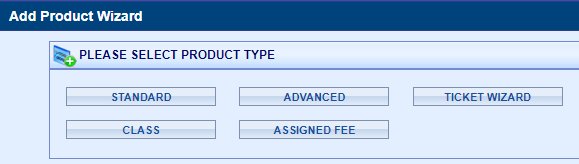
Click the Ticket Wizard button.
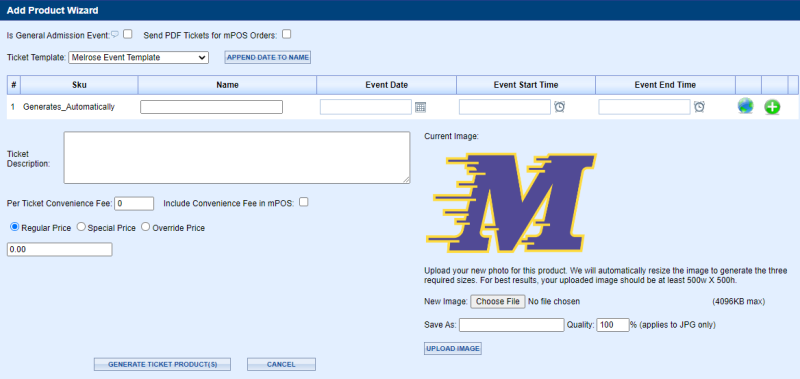
That opens the Wizard.
-
If you have a General Admission Event click that box.
-
If you want to send PDF Tickets via e-mail from the Box Office, check that box. It isn't likely you will use this setting as you give the customer a receipt for scanning at the door the day of the event.
-
Select you Ticket Template. I selected the template of choice from a drop-down from a demo site. (We will use the Append Date to Name feature later.)
-
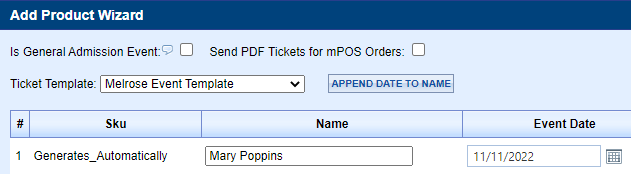
Enter the Name of your Show.
-
Enter the Event Date as shown below. You can click the calendar button to make it easier.
-
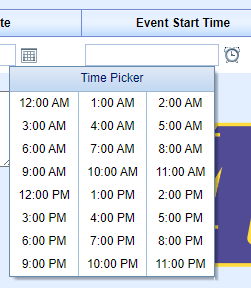
Select an Event Time. I clicked on the Clock icon to select the time. You can enter it manually as well.
-
After completing the Date and Time, click the Green plus if you have more than one event date.

After clicking the Green plus to add a second date you see a screen as shown below. Note it copied the Date and time. You will need to edit those, I changed the second Event Date to 11/12.

-
Once you have the Dates and Times as you want, click the Append Date to Name button.

The results above show the changes of the Sku and Name, automatically done for you.
We can continue to the next steps.
-
Click in the Ticket Description box if you would like to enter event information.

The next section, you can enter a Per Ticket Convenience Fee. Enter the amount you want. If you want to collect the convenience fee on Ticket Door sales check that box also. (I didn't select it.)
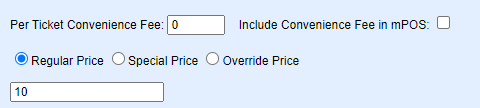
Next is the Pricing.
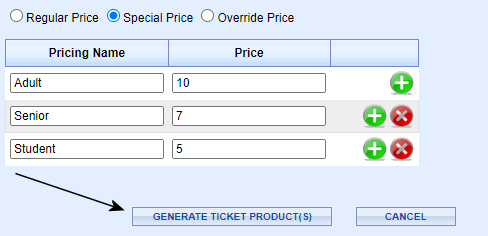
Click in the radio button if you want a Regular price, meaning everyone pays the same price. I entered 10 in the example above. But most school Ticket Events have different pricing for Adults, Students or Seniors.
-
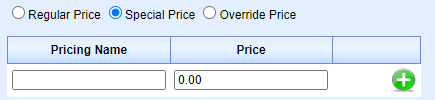
Click Special Price.
-
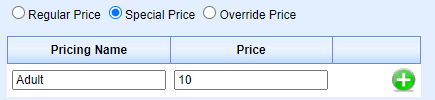
Enter the Pricing Name like Adult and enter a price.
-
Click the Green plus to add more pricing. I added Senior and 7.
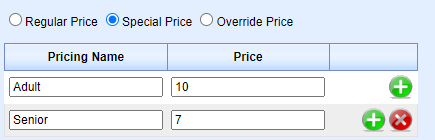
-
Click the Green plus if you wish to add more prices.
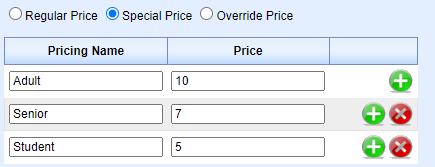
I added Student Pricing of $5.
If you need to reserve seats for Chaperones (teachers, parents, etc.) you can add an Override Price. That price is only available to School Admin users and the public doesn't see it. The price can be $0.

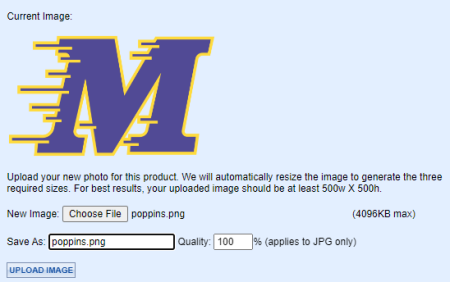
The last step is adding an image to your products.
-
Click the Choose File button and select an image from your computer.
-
Click the Upload Image button and you'll see your image.
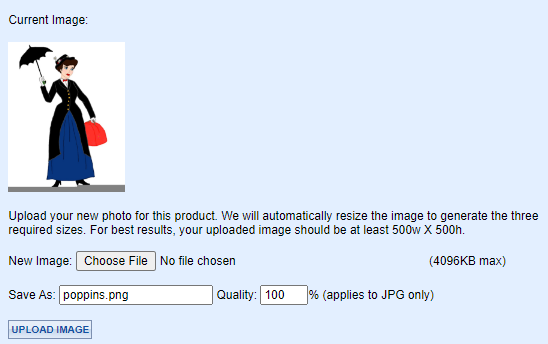
Now you are ready!
-
Click the Generate Ticket Product(s) button.
Congratulations! You have generated two Ticket Event products. You will find them at the end of the category listing.
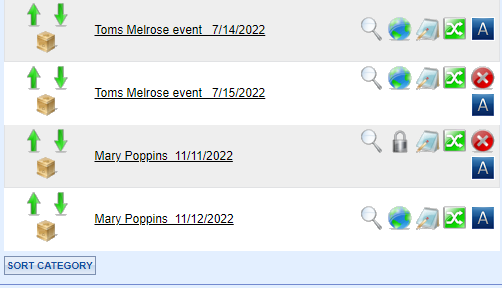
Note, those products are available to the public. If you don't want the public to see the products yet, you can change the Product Visibility.
-
Click the 'Globe' icon twice to make the product locked or private as seen above on Mary Poppins 11/22.
Open your new product, I opened Mary Poppins 11/12. Notice Show in mPOS is automatically checked for you in the Basic Info section from the Ticket Template.
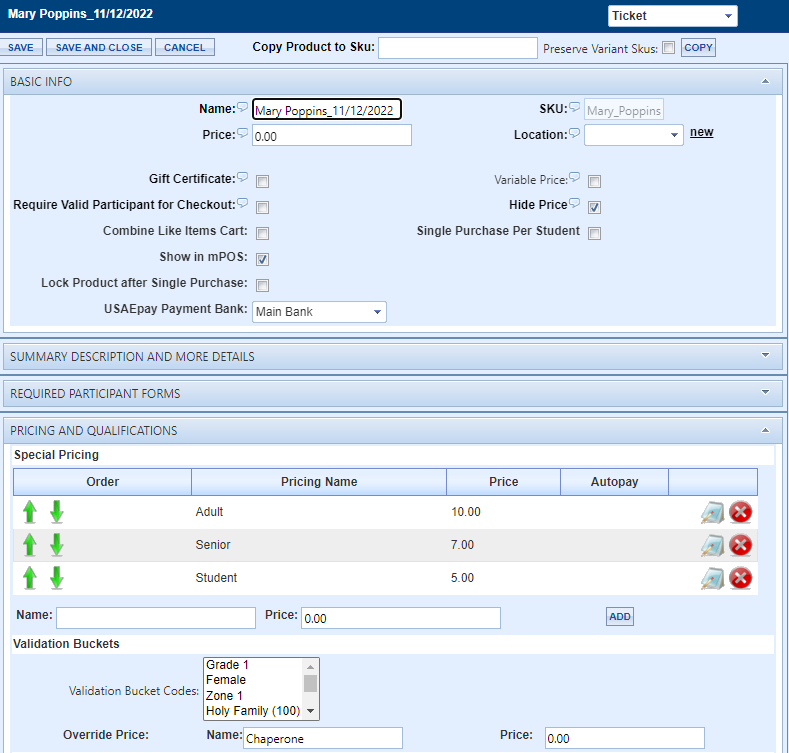
Notice the Pricing and Qualifications pricing the Ticket Wizard created. And the Override Price is included also.
Scroll down to the Accounting Information and note the Accounting and Department Codes have been copied from the template.
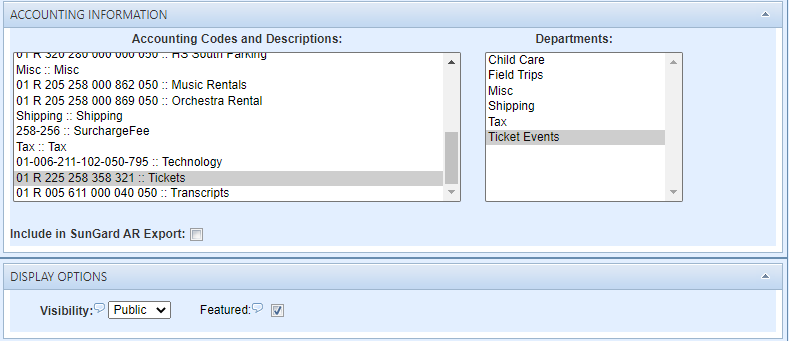
By default, the Visibility is Public, you can change it here also by clicking the down-arrow and selecting Private.
Scroll down to the Ticket Information section. The Ticket Wizard includes all the necessary information. No need to make changes.
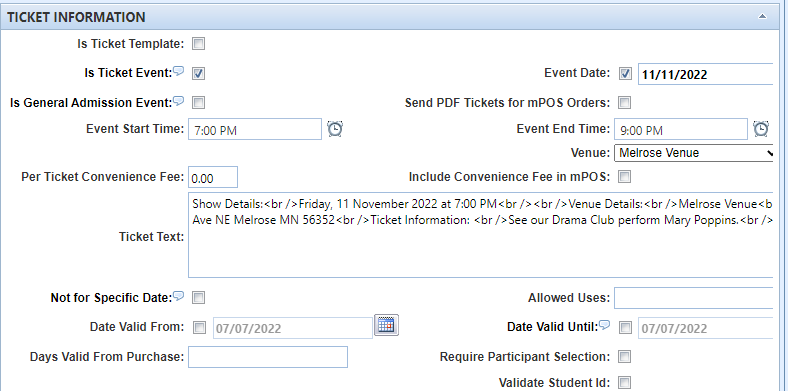
If you wish to use the Ticket Event product for parking, it would be best to create the product manually under Advanced Mode.
What will the Public see?
I clicked Store to get to the Public side. The Ticketing category includes our newly created Mary Poppins show.
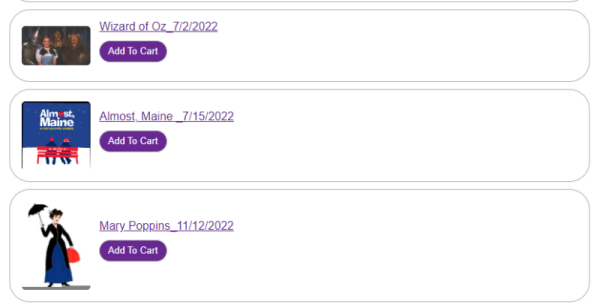
The customer will then need to:
-
Click Add to Cart
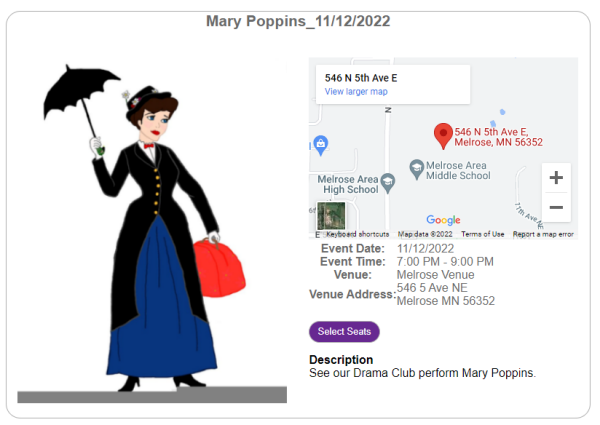
The customer will see this window next.
-
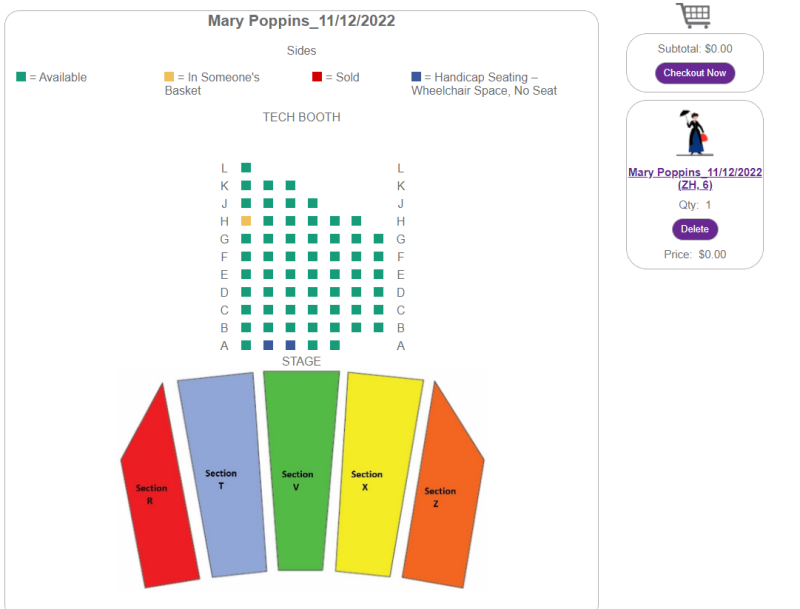
Click Select Seats. The Seat Map Sections appear. I clicked Section Z.
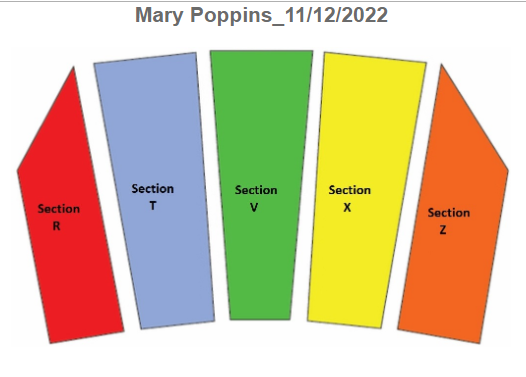
After clicking section Z, you see the screen below.
-
Click the seat of choice. I clicked ZH_6 and it appears yellow on the seat map and appears in the cart to the right.
-
Click the Checkout Now button.
-
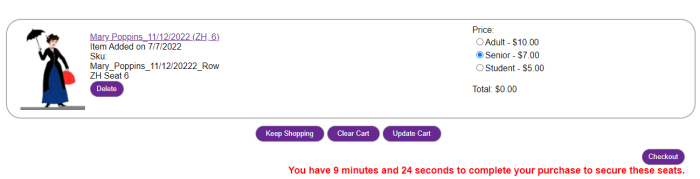
Select the Price and click the Checkout button at the lower right. You might see a different/similar window depending on the gateway used.
-
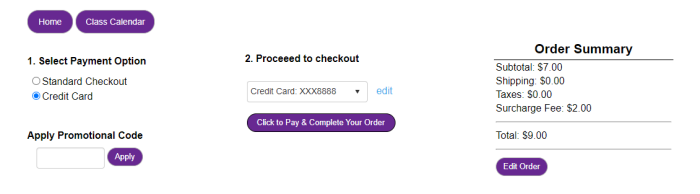
Click the Click to Pay & Complete Your Order button.
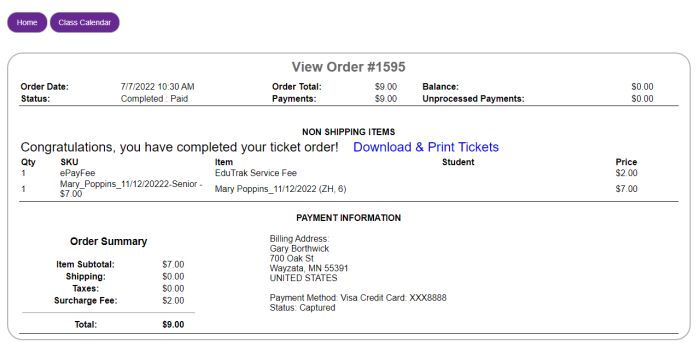
It's easy for the customer and similar to most eCommerce sites. In this case, the customer can print their tickets from their screen and they will receive an e-mail receipt with a bar code that's scannable. Our Door Entry feature can easily scan the bar code directly from cell phones or tablets. A printed receipt might not be necessary.
For more detailed information on adding products, check the Products Edit section.
Options and Variants
Options and Variants (the available seats for sale) and the Ticket Template must be created before you offer any ticket events for sale. The Ticket Template will be completed by EduTrak personnel.
Option and Variant Pricing
You will need this section if you plan on setting ticket prices per section or row. If you are going to use different pricing for certain sections or rows you can assign that pricing in the options and variants. In this example, I will use $25 for the Lower Level, $20 for the Lower Level Back section, and $15 for the balcony. You will need to know your venue and what rows are in each section.
-
Select Options and Variants on the left side of your screen.
-
Click the Manage Variants button near the bottom.

These options and variants can be tricky, so contact EduTrak personnel if you need help.
You will see your complete Sku with Date, Row and Seat Number. In the Price box enter $25. Then in the Rows box I entered the rows that I want to have a $25 price. In this example, I entered Rows A-N. Enter the row individually with a comma between each entry or it will not work.

Then click the Apply Pricing button. I followed the same procedure for Rows P-W, $20. Rows KK-SS in the balcony, I made the price of $15.
What does the customer see? $15 for balcony seating.

And $20 for the Lower Level back section.

And $25 for the Lower Level.

We have an override price option in ePayTrak. It is included in the Ticket Wizard, but if you discover you wish to change it after creating your product, you can edit it here.
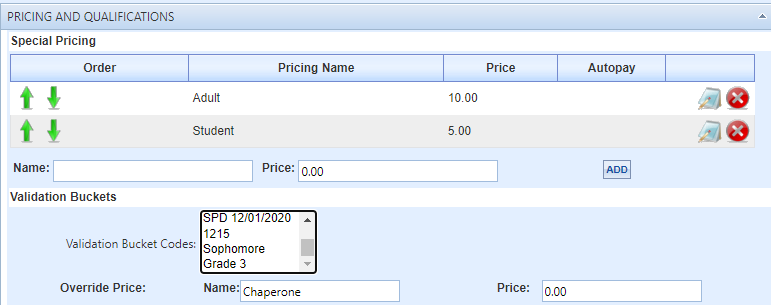
In the section of Pricing and Qualifications, you see an Override price. Enter text in the Name field and enter a price in the price section as shown below. Then when you are purchasing tickets as an admin or within the Web mPOS application, you can now easily choose the Chaperone override. This override price is not available for Web purchase by the customer.
Here is an example of what that looks like in the Web mPOS. (I added the Chaperone price after I created the product.)
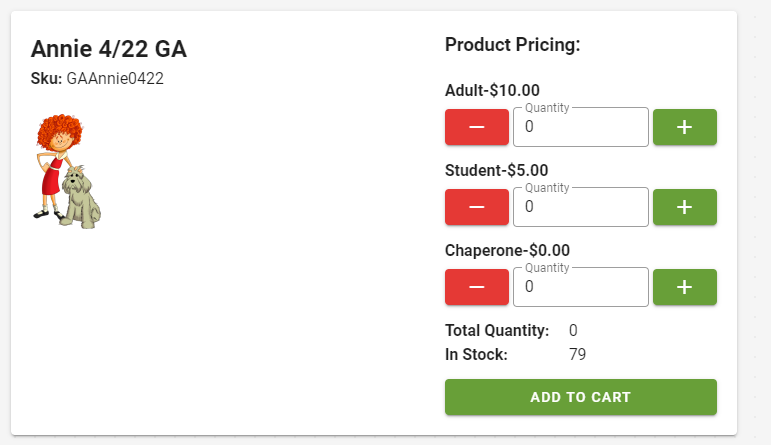
Process the order as you would normally.
Ticket Information Section
When creating your ticket product with the Wizard, you no longer need to see this section unless you want to make changes after you created the product.
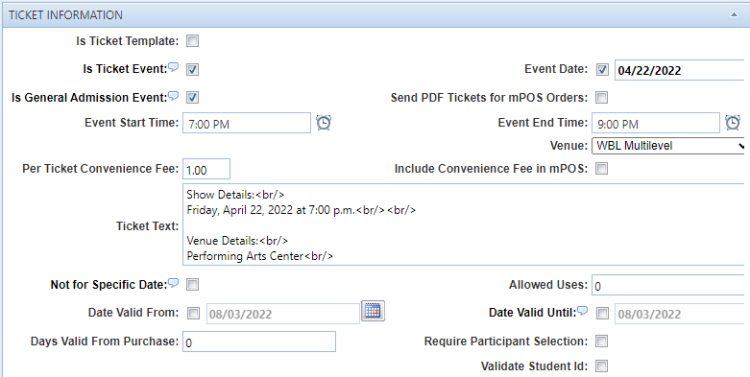
With the new Ticket Wizard, you add these items while creating the product. If you are using the tickets for parking for example, you can include a date range and many other choices by using the Advanced Mode.
Related Topics:
-
General Admission Tickets - A guide for completing all the necessary steps for General dmission ticket events.
-
Assign the Sku to the e-mail templates - Steps to add the skus to the mobile receipt.
2022 © Edutrak Software, LLC