Catalog browse > Products > New Product Wizard
New Product Wizard
We have a new Product Wizard. It will simplify new Product creation. You have Product Type Categories to choose from when creating your new Product.
When you click on Product in the Add Item section...
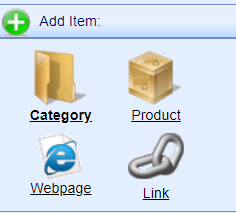
You see a Product Type Selection box. Note the different Product Types there are.
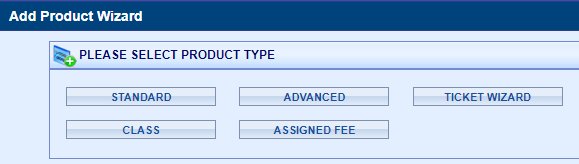
Standard Mode
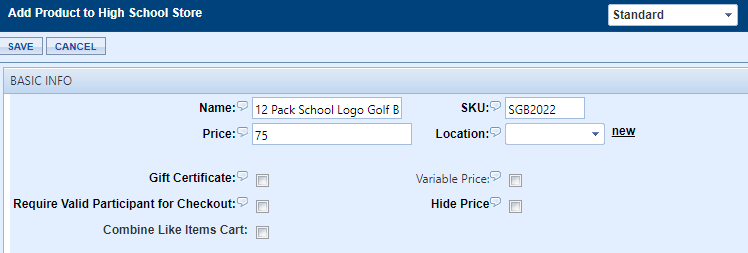
Click the Standard button to explore the first option. You see the screen below. Note that some sections below no longer appear (like Ticket Information) to show you only the choices you need for a Standard Product. At the top right you see Standard Mode.
-
Enter your Product Name. I entered 12 Pack School Logo Golf Balls.
-
Create and Enter your Sku. I entered SGB2022. (School Golf balls 2022).
Keep your Skus simple especially if you are using Pricing and Qualifications.
-
Enter a price.
-
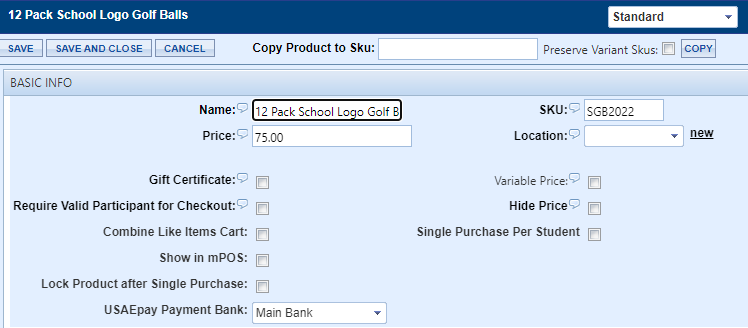
Click Save so you will see all options.
-
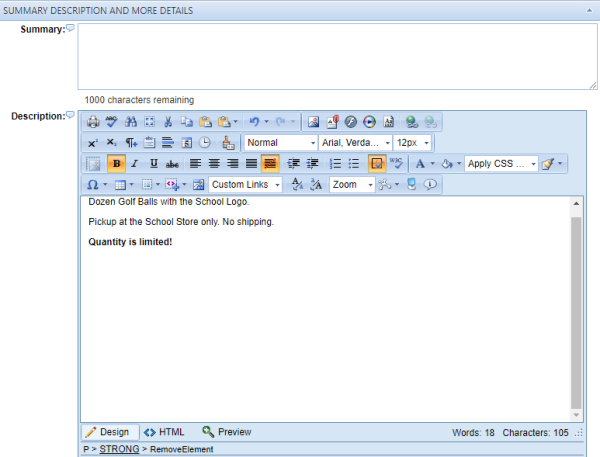
Add a Summary or a Description.
The Description window has a built-in .html editor. It looks similar to a Word processing application. At the bottom left, by default Design is selected. If you wish to copy the .html code, click the HTML button also at the bottom left to view the coding.
I entered my description, note I formatted Quantity is Limited in Bold. Just by highlighting the text and clicking the Bold logo button on the tool bar.
I skipped both the Required Participant Forms and the Pricing and Qualification sections at they don't apply to my product.
-
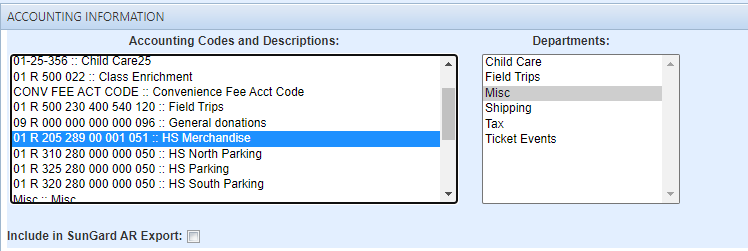
Select appropriate Accounting and Department Codes as shown below.
-
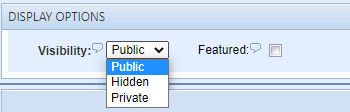
Select the Visibility Status.
-
Public means everyone can see and buy the product.
-
Hidden means that you can purchase as an admin.
-
To prevent all purchases select Private.
-
If you want your new Product to display on the Home page, select Featured.
We are not using Tax and Shipping so I skipped that section.
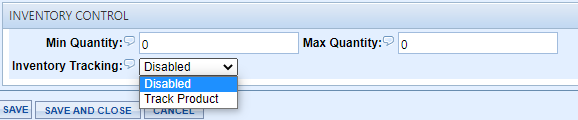
We have a limited amount of golf balls to sell, so expand the Inventory Control section.
-
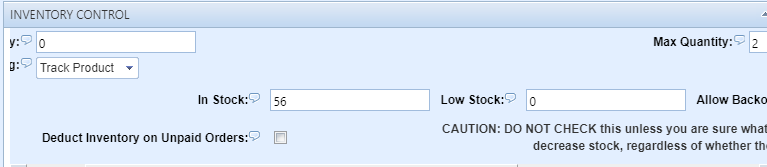
Disabled is the default. Select Track Product.
You will likely need to use the scroll arrows as it is a wide section.

-
Leave the Min Quantity set to 0. If you want to limit the Maximum per order to 2 for example, then enter a Max Quantity of 2.
-
Enter your Inventory amount into the In Stock box. We have 56 to sell.
-
Click Save and your Product is completed.
There are many options that we did not explore at this time. See Complete Product editing information.
Let's explore the other button choices that we had.
Class Mode
The next button is Class. You see the following screen after clicking the Class button.
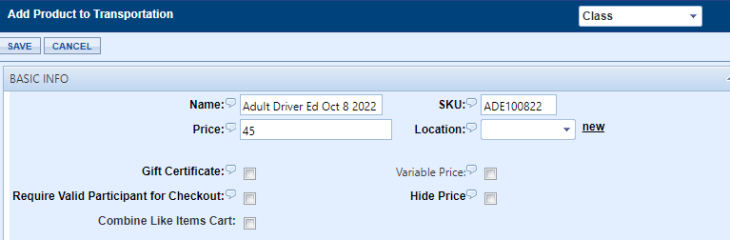
Enter the Name, Sku, Price and click the Save button.
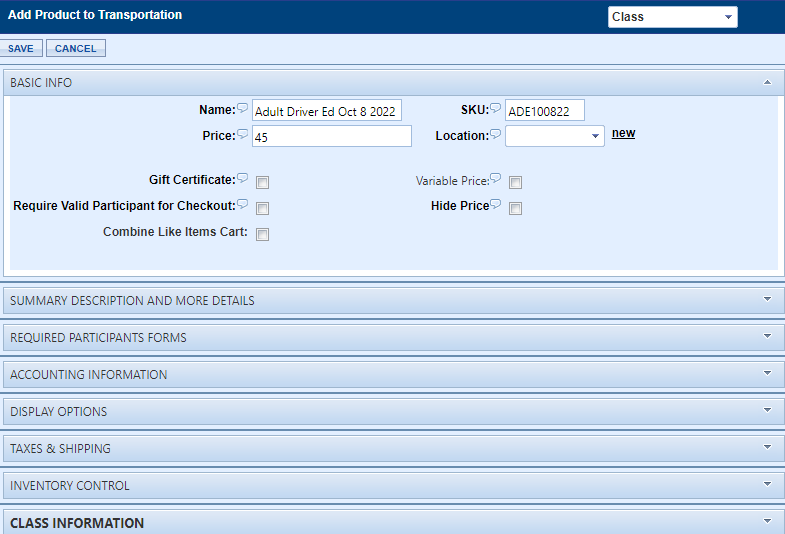
Note the biggest difference is now the Class Information section is bold because it is for a Class Product.
Enter the Date, Time and other information in the Class Information section as I've added below.
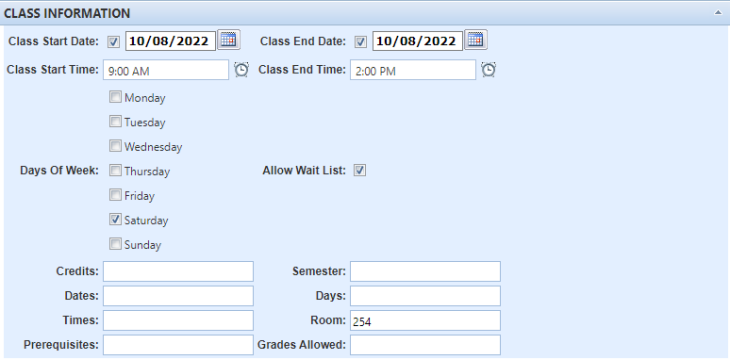
You can also use our Wait List functionality. That works with an inventory amount as we used in the first example.
Complete all other sections as necessary and Save your product.
Assigned Fee
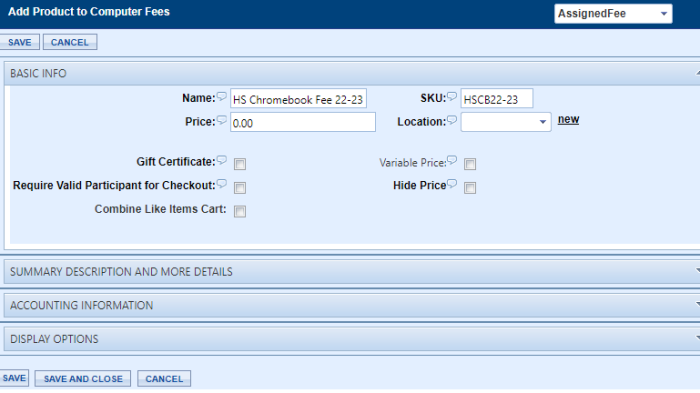
Let's Explore the Assigned Fee button. Click the Assigned Fee button. Note, there are fewer sections visible. Remember, you can always change the view by clicking on the Product Type drop-down box shown at the top right of the image below.
Enter the Product Name, Sku and Click Save.
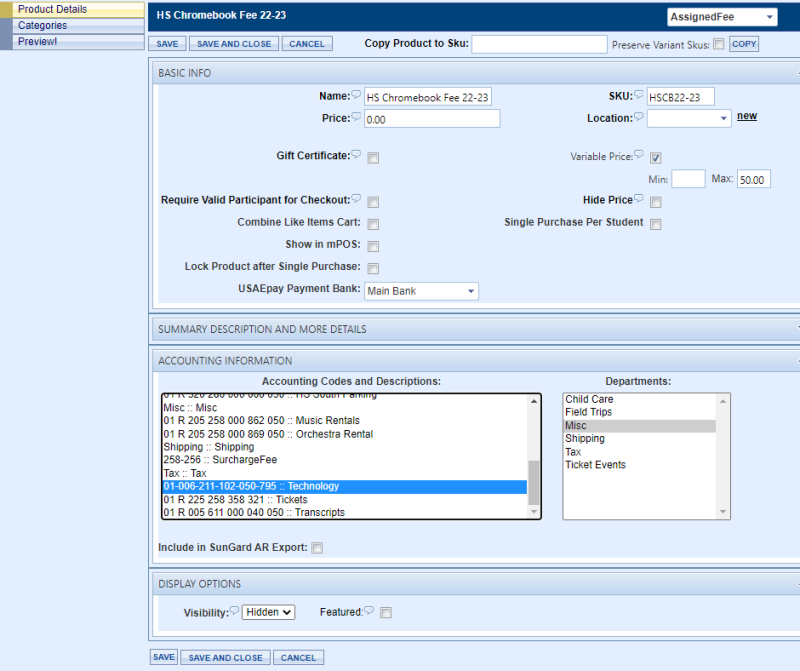
As shown below, I added a Variable Price of $50. And Accounting and Department codes.
I made the Display hidden. You usually don't want an Assigned Fee to be Public.
Note the contracted menu on the left side. No clutter. Save your Product because it's ready.
Advanced Mode
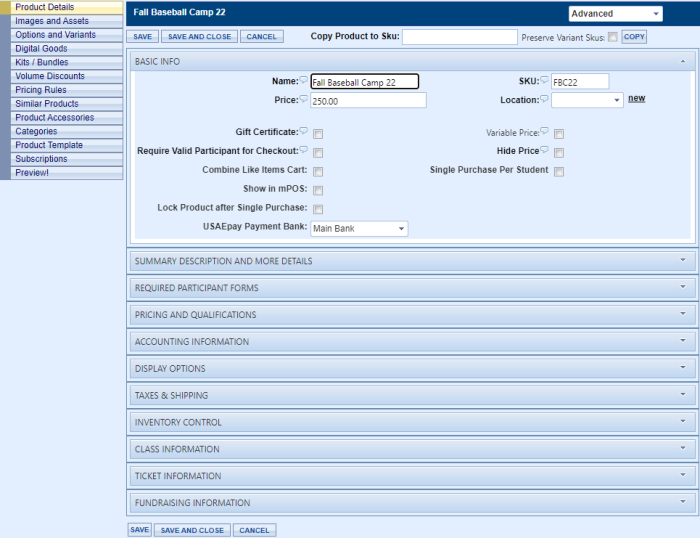
Next, click the Advanced button. Before the Wizard, this was the view you always saw when clicking the New Product button.
Enter Name, Sku and the Price and click Save to begin your edits.
The Ticket Template needs further exploring as there is more involved. There are hyperlinks to separate pages for General Admission Seating and Assigned/Reserved Seating using the Ticket Wizard below.
related topics
-
Assigned/Reserved Seating Ticket Wizard - Steps for creating a Ticket Event with Reserved Seating.
-
General Admission Seating Ticket Wizard - Steps for creating a General Admission event include athletic tickets.
-
Editing and Adding Products - Complete information for all functionality available for your products.
2022 © Edutrak Software, LLC